Invoices
An invoice is a draft until a person finalizes it. Drafts can be changed freely and have no number. A finalized invoice has its number, cannot be edited, and is corrected with a credit note or a cancellation.
Create a draft
Section titled “Create a draft”A draft comes from one of four places:
- Billing → Invoices → New invoice, with lines you enter or add from the catalogue.
- A quote, with Convert to invoice.
- A project’s unbilled time, with Create draft on the project’s Billing tab or the Bill project wizard. See Bill a project.
- A recurring invoice definition. See Recurring invoices.
Finalize
Section titled “Finalize”- Open the draft and check the lines, the VAT treatment and the delivery date. The app refuses to finalize without a delivery date or without lines, and asks you to confirm an unusual VAT treatment.
- Click Finalize.
Finalizing assigns the next number from the numbering circle, with no gaps. It freezes your details, the customer’s details and the currency conversion, and locks every time entry on the invoice.
Click Send. The PDF, with the embedded e-invoice, goes out from your connected mailbox. The sending is recorded on the contact’s activity. You can also download PDF (ZUGFeRD) or the XRechnung file, see E-invoices.
Correct an invoice
Section titled “Correct an invoice”Finalized invoices are never edited.
- Create Storno creates a cancellation that reverses the invoice in full. Both documents keep their numbers and refer to each other.
- A credit note corrects part of an invoice.
Both copy the original’s frozen conversion rates; nothing is converted again.
Status
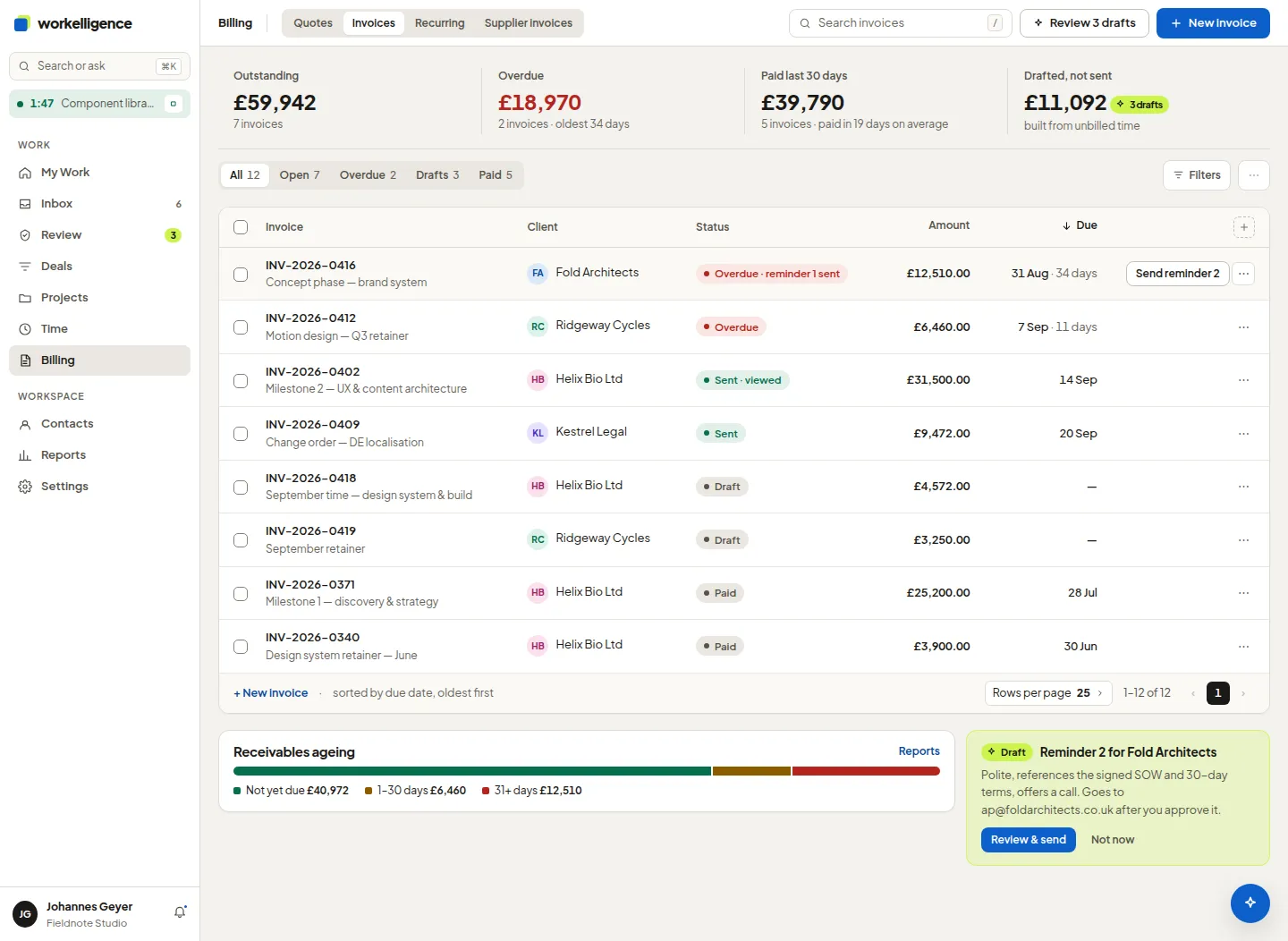
Section titled “Status”The invoice list shows each invoice as Draft, Sent, Paid, or Overdue with the days overdue. The status comes from the payment ledger, see Payments and reminders.