Quotes
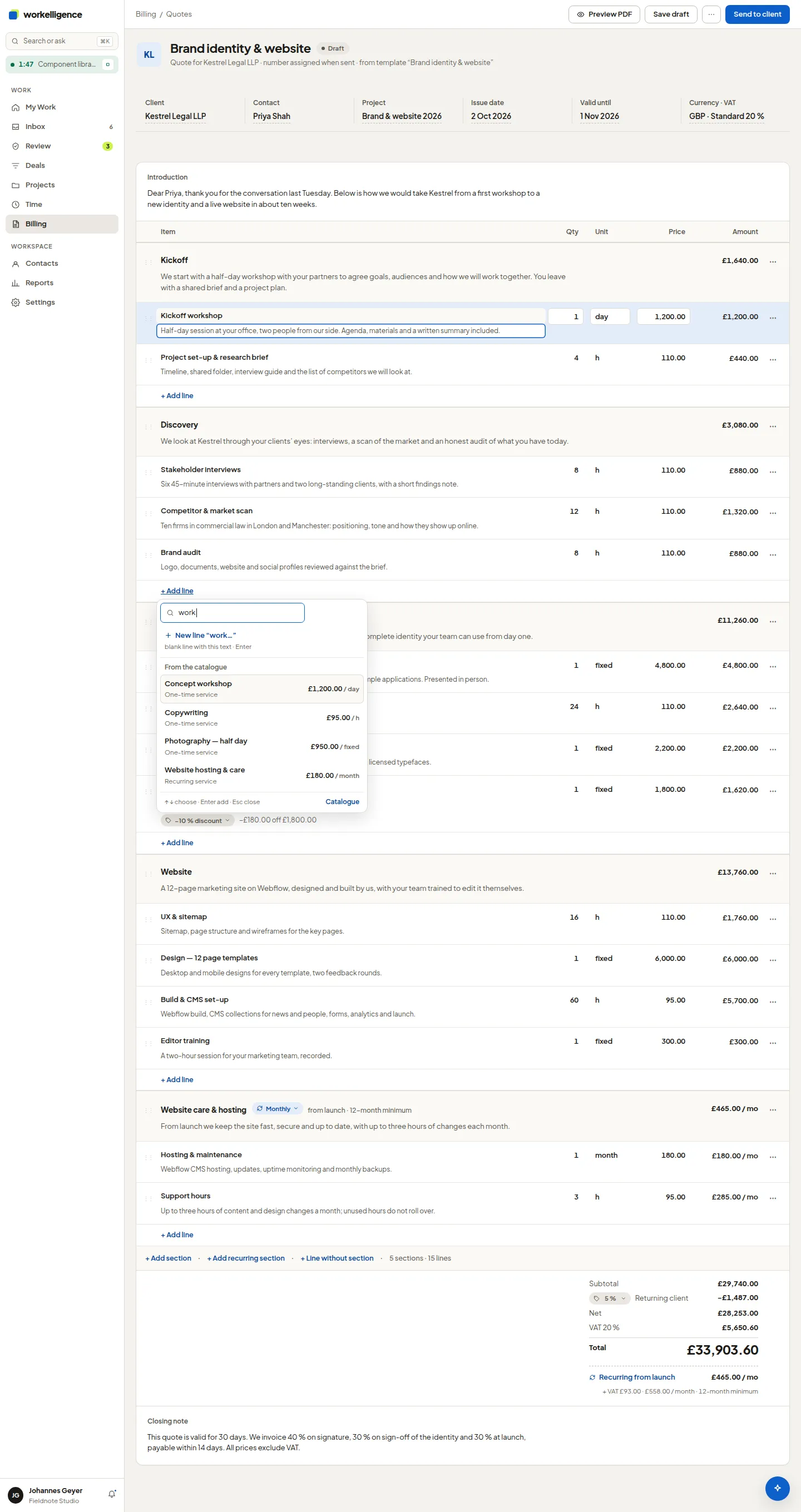
Quotes live under Billing → Quotes. A quote is lines with quantity, unit price and a VAT rate per line, and goes from Draft to Sent to accepted or rejected.
Create a quote
Section titled “Create a quote”- Open Billing → Quotes and click New quote.
- Choose the client. The quote takes the client’s billing address and the currency.
- Enter a Title, for example “Website relaunch offer”, and the Delivery date or period.
- Add lines by hand or with Add from catalogue…, which fills in your services and products with their prices.
- Save quote.
The quote is numbered from the quote numbering circle when it is sent, see Numbering and billing details.
Send the quote
Section titled “Send the quote”Click Send. The app renders the PDF from your quote template and sends it from your connected mailbox, so the client sees your usual address. The PDF of the sent version is stored with the quote.
From quote to invoice
Section titled “From quote to invoice”When the client accepts, open the quote and click Convert to invoice. The lines are copied into a new invoice draft, and the quote shows This quote was converted.
The KPI band
Section titled “The KPI band”The quotes list shows the open quote value and the Acceptance rate of the last months, so you can see how your proposals are doing.