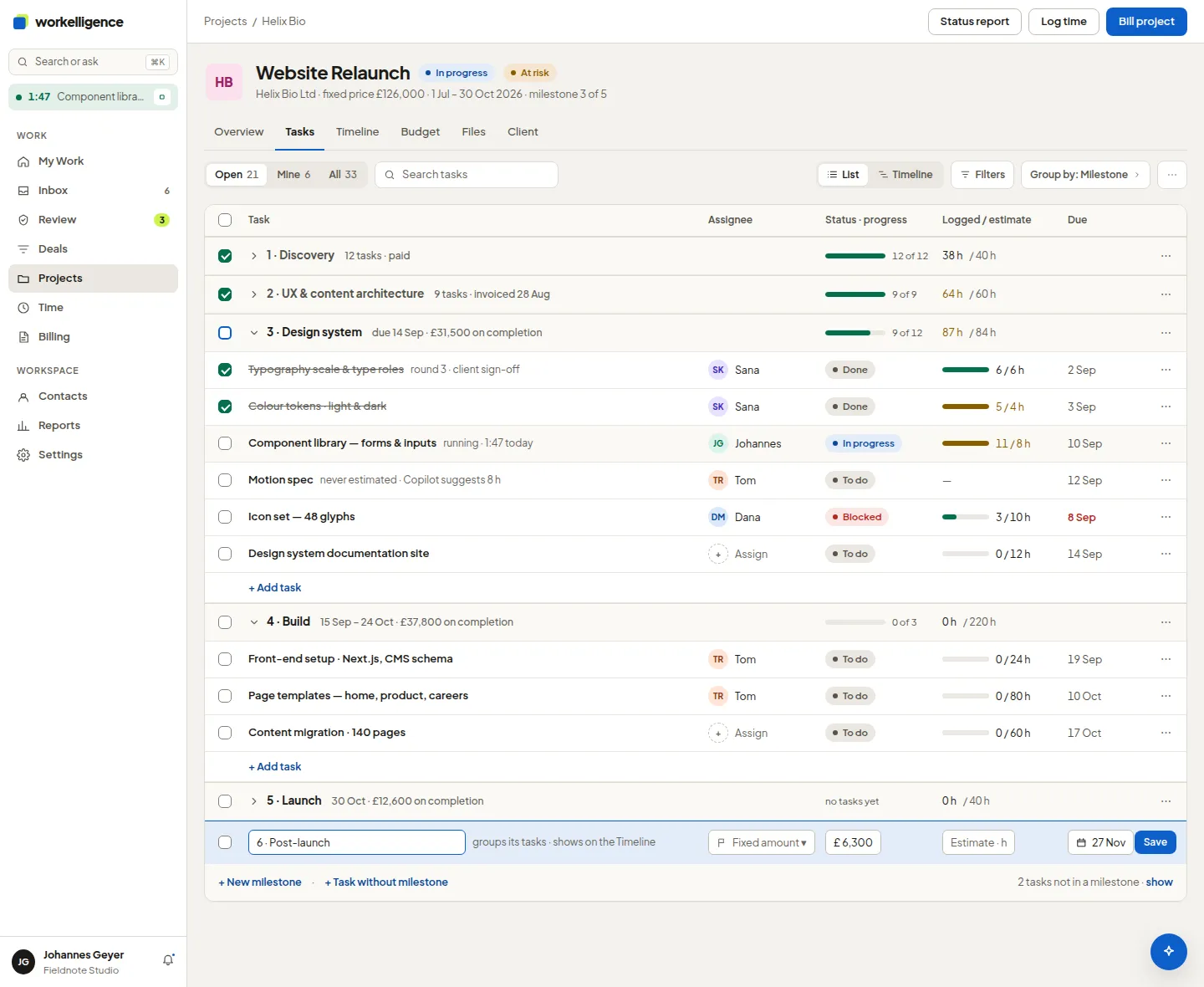
Tasks
Tasks live on the project’s Tasks tab, as a list or a board. Your own tasks are also listed on My Work.
Create a task
Section titled “Create a task”- Open the project’s Tasks tab and click New task.
- Enter the title, the assignee, the due date and, if you plan capacity, the estimate in hours.
- Save. The task starts in the first status.
Status, due date, assignee
Section titled “Status, due date, assignee”- Move a task between statuses on the board, or change the status on the task.
- An overdue task shows up in the assignee’s Needs attention.
- A task without an assignee can be taken with Assign to me.
Comments and files
Section titled “Comments and files”Every task has comments. Type @ and a name to mention a colleague; they are notified. Files attached to a task or a project are kept in the project’s Files tab, in folders if you like.
Tasks on other records
Section titled “Tasks on other records”Tasks can also sit on a company, a person or a deal, for example a follow-up call. They appear on that record and in your My Work list.