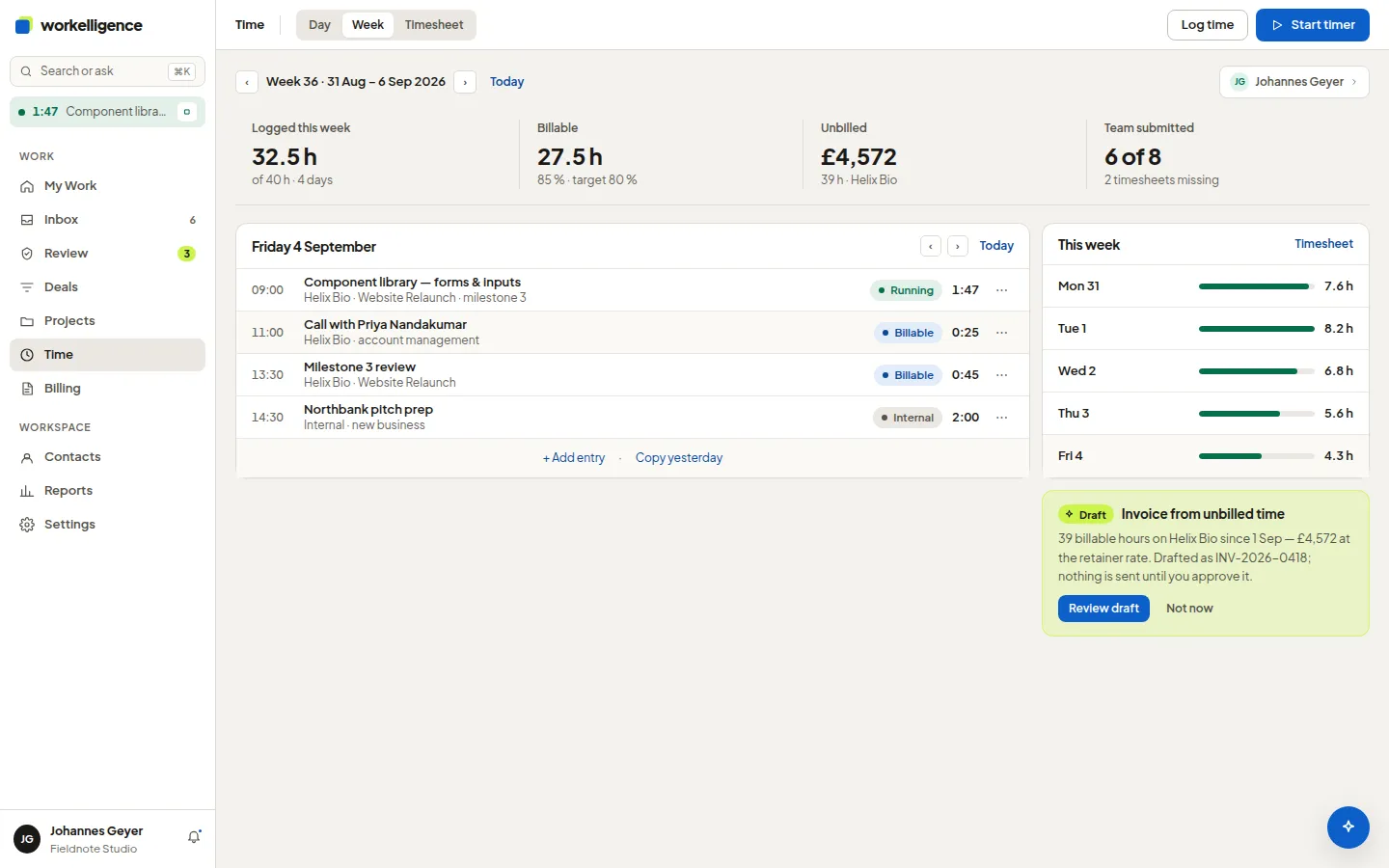
The timer and the week grid
Two ways, one result: a time entry on a project, billable or internal.
The timer
Section titled “The timer”- Click Start timer at the bottom left, or on a task.
- Choose the project, optionally the task, and a note.
- Pause and resume as you like. Stop creates the time entry with the elapsed duration.
A running timer is visible on every page. Only one timer runs at a time.
The week grid
Section titled “The week grid”Under Time → Week you see your week as a grid: one row per project, one column per day.
- Click a cell to add or change the hours of that day.
- Log time adds an entry with project, duration and note.
- A day without any entry is marked No time logged. The same days appear in Needs attention.
- Show weekend adds Saturday and Sunday.
Copy last week or the last working day
Section titled “Copy last week or the last working day”If your weeks look alike, do not type them twice:
- Click Copy last week or Copy last working day.
- The preview lists every entry with the day it lands on. Entries that already exist on that day are marked Already on that day.
- Untick what you do not want and click Copy. Undo reverts the copy.
Timesheets
Section titled “Timesheets”Time → Timesheet shows each person’s week and whether it is complete. Managers see the team; members see their own week only.