The capacity board
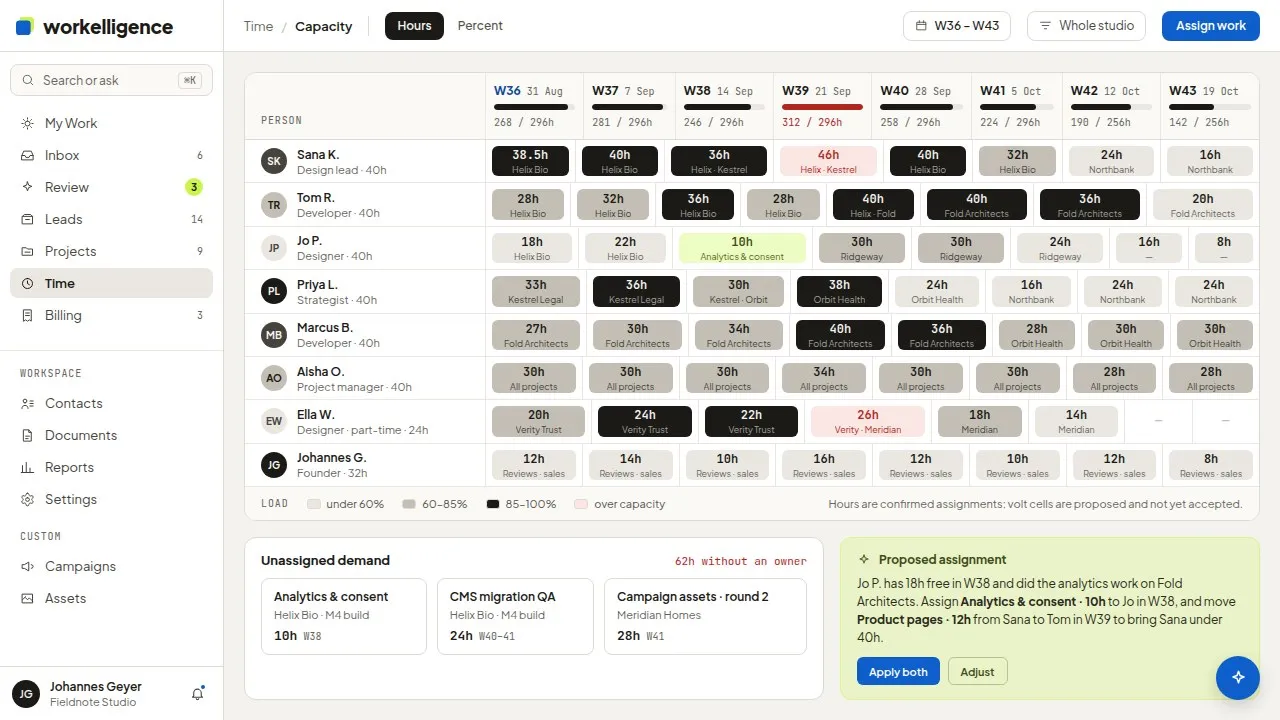
The planning board shows every member’s weeks ahead: what is planned, what is available and what has been tracked.
Switch it on
Section titled “Switch it on”Capacity planning is off in a new workspace. An administrator switches it on under Settings → General → Modules → Capacity planning.
Read the board
Section titled “Read the board”Open Time → Capacity. Each row is a person, each column a week.
| Figure | Meaning |
|---|---|
| Target | The hours the person’s work schedule gives for that week, minus absences |
| Planned | Hours of tasks planned into that week |
| Available | Target minus planned |
| Tracked | Hours already logged in that week |
Each cell carries a band: free, planned, nearly full, overbooked or no availability. Use Earlier weeks and Later weeks to move, and This week to return.
Members without the planning permission see My plan, their own weeks only.
Work that is not landing
Section titled “Work that is not landing”The Work that is not landing tray below the board lists open tasks with an estimate that are not planned into any week, or whose planned window is already past. Give them a planning window on the task, see The timeline.
Hours and percent
Section titled “Hours and percent”Switch between hours and percent of the target. The percent view is the quickest way to spot the weeks over 100 %.